

Blog Networking
Why Your Business Internet Keeps Dropping (And How to Fix It)
Nothing erodes a workday like intermittent internet. The connection works, then it does not. A Zoom call drops in the middle of a sentence. The point-of-sale freezes for ninety seconds in the middle of a transaction. The office manager types "wait, is the internet down?" into Teams for the third time this week.
The frustrating thing about dropped internet is that it almost never has one clean cause. There are usually three or four possible culprits, and the actual fix depends on figuring out which one is the problem. This article walks through the real reasons business internet keeps dropping, how to narrow it down, and what each fix costs.
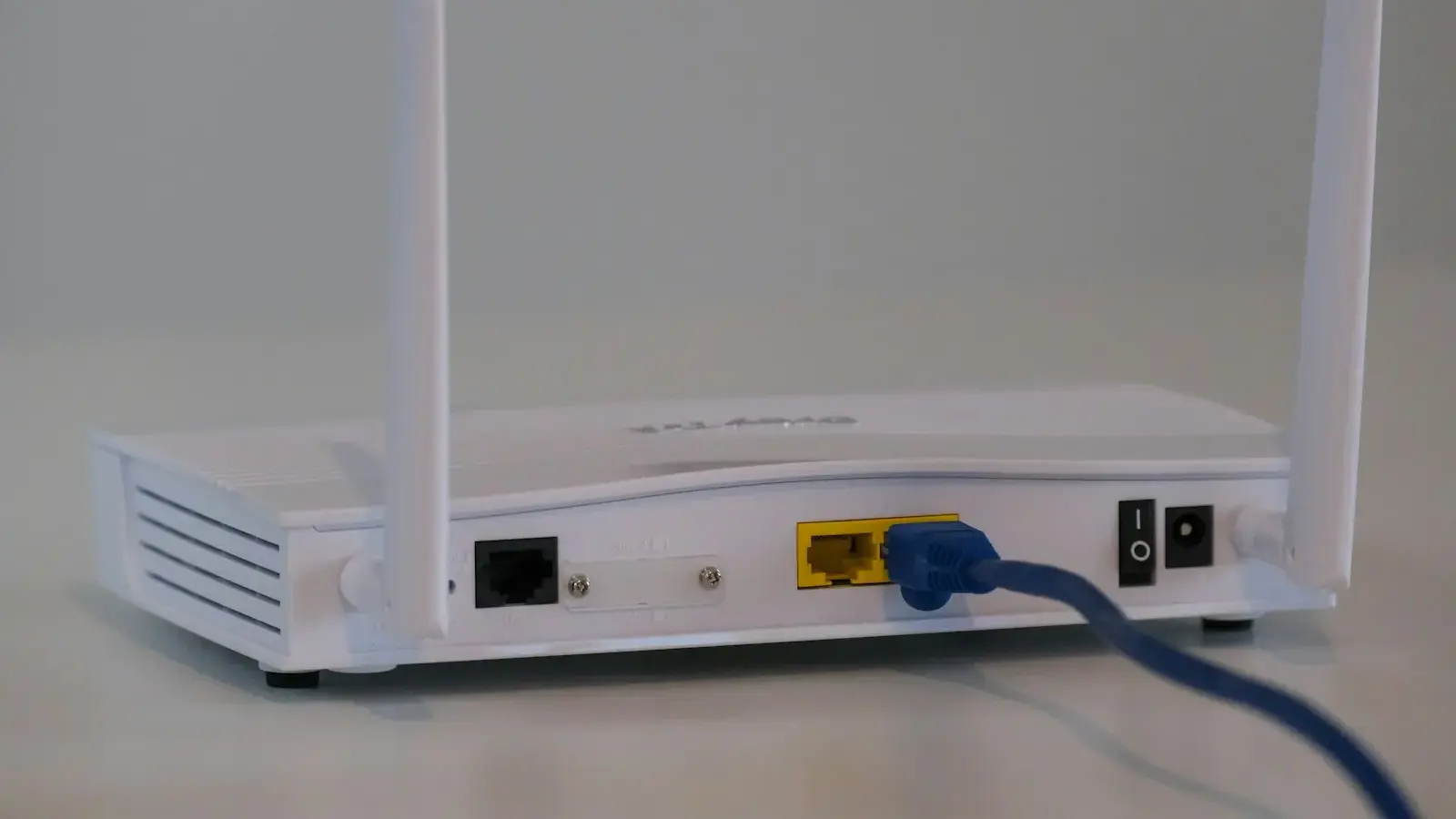
What "Internet Is Down" Usually Actually Means
Most of the time when someone says "the internet is down," one of five more specific things is actually happening:
- Your ISP's service is interrupted. Rare but possible. The connection from your building to the rest of the internet has a problem.
- Your office network has a problem. The firewall, switch, router or Wi-Fi access points are not working right. Internet is fine at the wall; your gear is the issue.
- A specific application is down. Microsoft 365 or Google Workspace or your line-of-business software is having a bad day. Everything else works; this one does not.
- Wi-Fi is weak at specific spots in the office. The connection is fine for most people, bad for the person in the back corner office.
- A specific device is having trouble. One laptop keeps dropping Wi-Fi. Everyone else is fine.
Each of these needs a different fix. The first step in solving "the internet keeps dropping" is figuring out which one is actually happening.
How to Tell What Is Actually Breaking
A short diagnostic sequence to run next time it drops:
- Open a browser and go to a non-Microsoft site like google.com or weather.gov. Does it load? If yes, you have internet; a specific app is down. If no, continue.
- Check if the Wi-Fi says connected. If not: check if an ethernet-wired computer is working. If the ethernet works and Wi-Fi does not, the problem is your Wi-Fi, not your internet.
- Check if the issue is affecting everyone or just you. Walk around. Ask a colleague. If only you, the issue is likely your device, not the network.
- Look at the modem and firewall. Are the lights normal? If the ISP's modem has a red light or is cycling, the problem is upstream.
- Check your ISP's status page. CenturyLink, TDS, Starlink, cellular: all have status pages that will tell you about regional outages.
- Check Microsoft 365 at status.cloud.microsoft and Google Workspace at google.com/appsstatus. Vendor outages happen.
Within five minutes of running this sequence, you usually know which of the five categories the problem is in. That tells you who to call: ISP, IT provider, application vendor, or just the person with the misbehaving laptop.
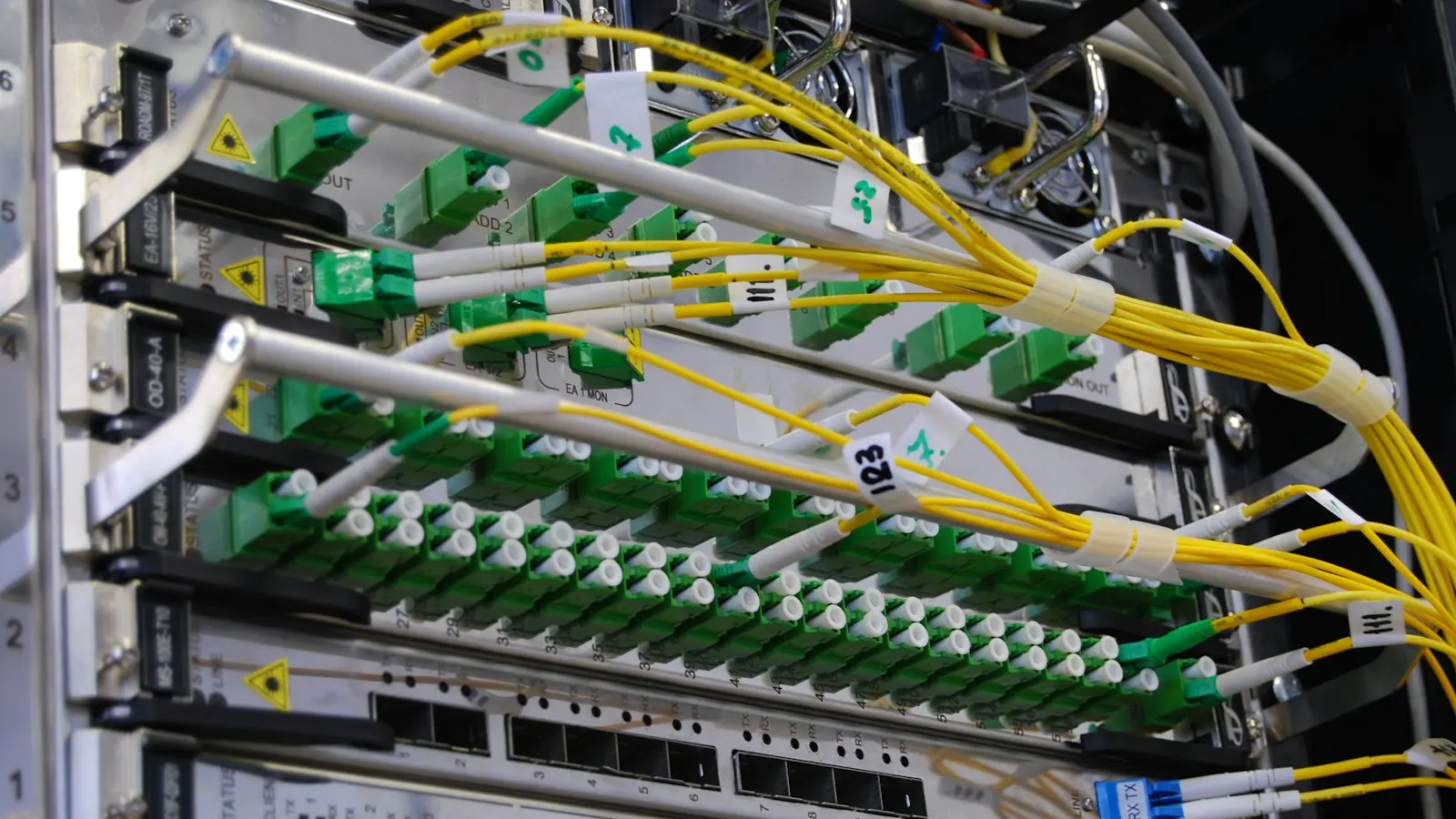
Reason 1: ISP Problems in Central Oregon
Central Oregon has a mix of fiber (CenturyLink/Lumen, TDS, Hunter Communications, Crestview Cable), cable, DSL, fixed wireless and Starlink. Reliability varies by neighborhood and by day of the week.
Signs your problem is the ISP:
- Both wired and wireless lose connection at the same time.
- The modem shows unusual status lights.
- Your ISP's status page confirms an outage.
- Neighboring businesses are affected.
- The problem happens at consistent times of day (peak congestion).
Fixes:
- Short term: use a cellular hotspot while your ISP recovers.
- Medium term: add a failover internet connection. A cellular LTE/5G backup router kicks in automatically when the primary fails. Expect $75 to $200 per month in service plus one-time hardware.
- Long term: consider switching ISPs if the problem is chronic. In most Central Oregon markets you have 2 to 3 real options.
Reason 2: Firewall, Switch or Router Problems
Your office network gear sits between the internet and your devices. When it misbehaves, the symptoms look exactly like an ISP problem: the internet works upstream, you just cannot get to it.
Signs your gear is the problem:
- Rebooting the firewall or main router fixes it (for a while).
- Hardware is older than five years.
- Firmware has not been updated in a long time.
- Problems started after a thunderstorm or power event.
- Specific features (VPN, VoIP, guest Wi-Fi) are flaky while others work.
Fixes:
- Firmware updates. Easy, free, often fixes long-standing issues.
- Replace end-of-life gear. Plan to replace firewalls roughly every 5 to 7 years, when support and firmware updates end.
- Right-size the hardware. A SMB firewall that was fine for 10 users may not be fine for 25.
- UPS battery backup on all critical gear. Prevents damage and corruption from power events.
Reason 3: Wi-Fi Problems
Weak or inconsistent Wi-Fi is the most common complaint we hear in Central Oregon offices. Buildings have thick walls, bad placement of equipment, interference from neighboring businesses, and consumer-grade hardware trying to do a business-grade job.
Signs Wi-Fi is the problem:
- Wired devices work fine; wireless devices do not.
- The problem is worse in specific rooms or corners.
- Signal strength is weak on the laptop (bars indicator).
- Lots of devices on the network (phones, laptops, printers, Wi-Fi cameras, point-of-sale, tablets).
- Guest Wi-Fi and staff Wi-Fi share the same equipment.
Fixes:
- Site survey. A professional with proper tools walks the office measuring signal strength, usually as the first step of a Wi-Fi project.
- Business-grade access points. UniFi (Ubiquiti), Meraki (Cisco), Aruba, Ruckus. Multiple access points placed properly. For most Central Oregon offices this is $2,000 to $8,000 in hardware, one time.
- Separate SSIDs. Guest Wi-Fi on its own network from staff. Point-of-sale on its own network. Cameras on their own network.
- Replace consumer gear. That Linksys from Costco was great for a home. It was never designed for 15 people on video calls.
Reason 4: Application Outages
Microsoft and Google occasionally have outages that take their services down for hours. QuickBooks does too. So does your dental practice management software, your point-of-sale cloud, your scheduling system. When one application is down, the symptoms look like an internet problem but the fix is just waiting.
Signs an application is the problem, not internet:
- Other websites and services work fine.
- The affected application works on cellular data too (or does not: telling you it is server-side).
- The application's status page confirms an outage.
- Many customers reporting the same issue on social media.
Fixes:
- Confirm the outage on the vendor's status page.
- Report the impact to the vendor (helps them prioritize).
- Have backup plans for your top three apps: paper fallback for point-of-sale, offline backup of recent client files, phone call to vendor direct line.
- Choose vendors with better uptime track records next time you shop.

Reason 5: Specific Device Problems
Sometimes only one person is complaining. That is usually not the internet; that is their device.
Signs it is a device problem:
- Only one person affected while others work normally.
- The problem follows the laptop between rooms.
- Specific apps crash on that device while others on the same device are fine.
- Problem started after a Windows or macOS update.
- Device is more than 5 years old.
Fixes:
- Reboot the device fully.
- Check for pending Windows or macOS updates.
- Update network drivers.
- Forget and re-join the Wi-Fi network.
- Try a different Wi-Fi band (5 GHz vs. 2.4 GHz).
- Try an ethernet cable to isolate Wi-Fi from the broader issue.
- Replace the device if hardware failure (dying wireless card is common).
The Permanent Fix: Redundancy and Monitoring
If internet reliability is critical to your business, and for most Central Oregon businesses it is, the real fix is not any single intervention. It is a layered approach:
Redundant Internet
Primary business fiber plus cellular backup that fails over automatically. One ISP outage does not stop you.
Business-Grade Network Gear
Firewall, switches, Wi-Fi designed for your actual size, replaced on a 5 to 7 year schedule.
UPS on the Network
So brief power events do not drop the connection.
Monitoring
Your IT provider sees the ISP flapping before you do. The best outages are the ones nobody notices.
Documentation of What Each Person Depends On
So when "the internet is down," you know within seconds whether the real issue is the ISP, Wi-Fi, or a specific app.
When to call your IT provider vs. your ISP
A rough rule:
- Call the ISP if the entire office is offline, the modem has unusual status, or a public status page shows an outage.
- Call your IT provider if the office is partially affected, Wi-Fi is flaky, specific apps are down, or you cannot tell what is actually broken.
If you have managed IT services, calling your IT provider first is usually faster: they can diagnose quickly and loop in the ISP when needed. You should not have to be the one triaging.

Short Version
"The internet keeps dropping" usually means one of five specific things: ISP problem, office network gear problem, Wi-Fi weakness, application outage, or specific device issue. Each has different diagnostics and different fixes. The permanent solution for a business that depends on internet is a layered approach: redundant ISP connections, business-grade network gear, UPS protection, monitoring, and a managed IT provider who sees the problem before you do.
If your business internet has been dropping and you want someone to actually diagnose it instead of guess, text (541) 239-3338, call (541) 239-3338, or book a free 30-minute consultation. Same business day response.