

Blog IT Support
Business Computer Repair in Redmond, Oregon: Repair, Replace or Retire?
A laptop that will not boot at home is an annoyance. A laptop that will not boot at your front desk is lost revenue, a stalled employee and, sometimes, a data problem. Business computer repair in Redmond, Oregon is a different job from fixing a personal machine, because the real question is rarely "can this be fixed?" It is "what gets this person working again fastest, and is this computer worth another dollar?"
This guide is for Redmond and Central Oregon business owners who want to make that call quickly and well. We cover the repair-or-replace decision, what to look for when buying business computers, getting a new machine set up without losing a day, warranties, why a spare is cheap insurance, and how to retire old machines without leaving your data behind.
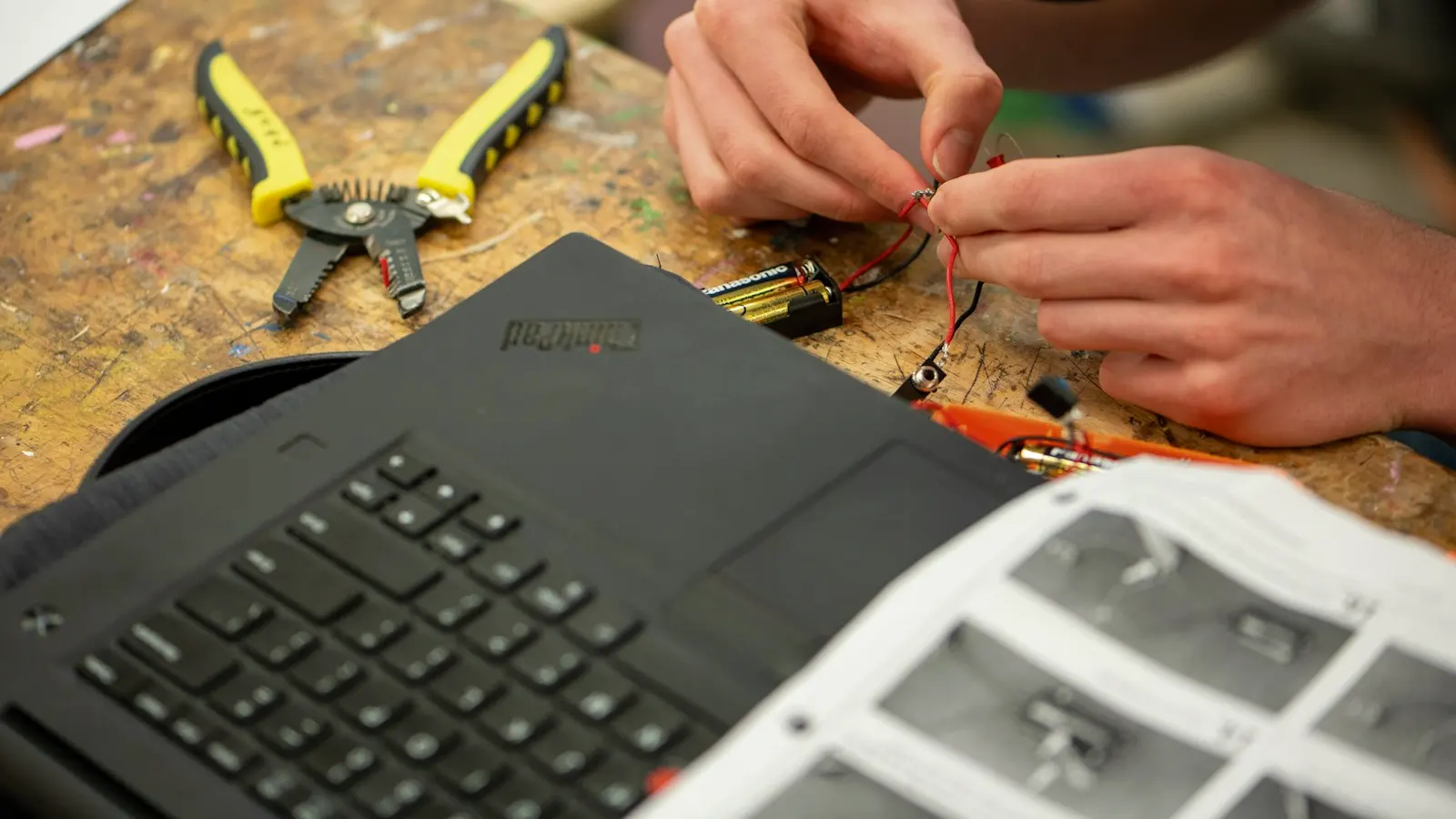
First: get the person working, then fix the computer
When a computer dies, the instinct is to focus on the computer. Flip it around. The first goal is getting your employee productive again. If their files live in OneDrive, SharePoint or Google Drive and their email is in the cloud, they can sign into a spare machine and keep going while the broken one gets sorted out. That is a big reason we push offices toward cloud storage: it turns a hardware failure into a hardware problem instead of a business problem.
If important files only live on that one computer's drive, stop. Do not let anyone wipe it, reinstall Windows or run a "fix-it" tool before the data is safe.
Repair or replace? A simple way to decide
There is no perfect rule, but these questions settle most cases in a few minutes.
Usually Worth Repairing
- The machine is still under warranty. Use it.
- It is fairly new and the problem is a single part: a battery, keyboard, charger, screen, memory or storage drive.
- The issue is software: a bad update, a corrupt profile, malware cleanup or a slow startup.
- It is a specialized machine that is hard to replace quickly, like a workstation with licensed software tied to it.
Usually Time to Replace
- It can no longer get security updates, or will not run a supported version of Windows or macOS. That is a security issue, not just a speed issue.
- The repair costs a large share of what a comparable new business computer costs.
- It is the second or third repair this year on the same machine.
- The motherboard has failed or there is liquid damage on an older laptop.
- It is slow enough that the employee is losing real time every day. That cost adds up faster than most people think.
A useful gut check: if you would not buy this exact machine today, think hard before paying to keep it alive.

Buying Business-Class Computers
The cheapest laptop on the shelf is built for light home use. Business-class models from the major manufacturers cost a bit more up front and usually save that back in fewer problems. What to look for:
- The Pro edition of Windows, not Home. Pro supports BitLocker encryption and proper management through Microsoft 365, which matters for security and for your cyber insurance questionnaire.
- A solid-state drive and enough memory for how your staff actually work. Several browser tabs plus Teams plus a line-of-business app add up fast.
- A TPM chip and a fingerprint reader or IR camera, so Windows Hello for Business works for sign-in.
- Consistency. Buying the same model for a group of staff makes support, spare parts and docking stations simpler.
- A business warranty (more on that below).
Our hardware and software solutions include helping you choose and buy the right machines, so you are not guessing from a spec sheet at a store counter.
Setup and Data Transfer Without Losing a Day
A new computer out of the box is not ready for work. A good setup means the employee sits down and everything is there. A typical checklist:
- Enroll the computer in your Microsoft 365 or Google Workspace management so security policies and apps apply automatically.
- Turn on disk encryption and endpoint protection, and confirm updates are current.
- Install line-of-business software, printers and any VPN or remote access tools.
- Move data from the old machine: browser bookmarks, saved signatures, desktop files and anything not already in the cloud.
- Have the employee sign in, set up MFA and Windows Hello, and check that their usual daily tasks work.
- Keep the old machine untouched for a week or two, just in case something was missed.
Warranties: What Is Worth Paying For
Business-class computers usually offer warranty upgrades. A few that tend to earn their keep for small offices:
- Longer coverage that matches how long you plan to keep the machine.
- Next-business-day on-site or depot service, so you are not shipping a laptop away for weeks.
- Accidental damage coverage for laptops that travel: job sites, client visits, the drive over to Bend or Prineville.
- Keep-your-drive options for offices with sensitive data, so a failed drive does not leave the building.
Write down serial numbers, purchase dates and warranty end dates in one place. When something breaks, you do not want to dig through old emails.
Keep a Spare Computer
For almost any office with more than a handful of people, one ready-to-go spare laptop is one of the best investments you can make. Keep it updated, enrolled in management and charged. When a machine fails, the employee signs into the spare and keeps working while the repair or replacement happens. It also helps with new hires who start before their computer arrives.

Retiring Old Machines Securely
Old computers hold more than you think: saved passwords, cached email, customer files, tax documents. Before a machine leaves your office, whether it is recycled, donated or sold:
- Make sure any data you need has been moved.
- Remove it from Microsoft 365 or Google Workspace management and from your endpoint protection.
- Securely wipe the drive, or physically destroy it if the data was sensitive. A regular delete or quick format is not enough.
- Use a recycler that provides a certificate of data destruction if your industry calls for it.
- Update your inventory so the device is marked as retired.
Short Version
- Get the employee working first; cloud storage makes that easy.
- Repair newer machines with single-part or software problems. Replace anything that cannot get security updates or keeps breaking.
- Buy business-class computers with Windows Pro, an SSD, a TPM and a business warranty.
- Keep one spare ready, and wipe old drives before they leave the office.
Where Managed IT Helps
Repairs are easier when someone already knows your machines, their ages and their warranties. Our managed IT services in Redmond include the help desk, updates, endpoint protection, onboarding and offboarding, and vendor management, including dealing with manufacturers on warranty claims. Quarterly planning check-ins put replacements on a schedule instead of a surprise. Plans are a flat monthly fee, priced per user per month, with a quote from a free IT consultation.

Get Help with a Business Computer in Redmond
Got a computer that is down, slow or overdue for retirement? Text us a photo of the error screen at (541) 239-3338 or call (541) 239-3338. A real person answers during the business day, and we respond the same business day. Even if you are not a client yet, text us; we will tell you what to do next.
Planning a refresh for the whole office? Book a free 30-minute IT consultation. You will get a quote and a one-page, plain-English list of what is fine and what needs fixing. It is the easiest way to see how IT services for Redmond businesses could take this off your plate.