

Blog Networking
Office Network and Business Wi-Fi Setup in Redmond, Oregon
When the office network is working, nobody thinks about it. When it is not, everything stops: the card reader, the phones, the shared drive, the video call with the client. If you are planning an office network setup in Redmond, or living with business Wi-Fi in Redmond, Oregon that drops every afternoon, the fix is usually not one magic router. It is a handful of decisions made in the right order.
This guide walks through those decisions the way we approach them for offices around Redmond and Central Oregon: the internet connection, the gear, the cabling, the Wi-Fi layout, keeping guests separate, and what to do when the internet goes out. If you are moving into a new space, there is a checklist near the end.

Start with the Internet Connection
Everything else rides on this, and in Central Oregon your options depend a lot on the exact address. Two buildings a few blocks apart can have very different choices. Before you sign a lease, or before you blame the Wi-Fi, find out what is actually available at your door.
Providers you will commonly see around Redmond, depending on location, include TDS, Ziply Fiber, Spectrum, Starlink and local fixed wireless providers. A few things to ask about any of them:
- Upload speed, not just download. Video calls, cloud backups and sending large files all depend on upload. Fiber usually has the most balanced speeds.
- Business vs. residential service. Business plans often come with better support, a static IP option and clearer terms. Worth asking about even if the speed is the same.
- Install lead time. New service to a building that has never had it can take weeks. Order early.
- Outage history. Ask neighbors in the same building or business park what their experience has been.
For offices out toward Terrebonne, Sisters or other more rural spots, satellite and fixed wireless can be the main option. They can work well for a small office; just plan for a backup connection.
Business-Grade Gear: Firewall, Switches and Access Points
The all-in-one box your ISP hands you, or a consumer router from a big-box store, is built for a household. A business network needs a little more separation of duties.
Firewall
A business firewall sits between your office and the internet. It handles security filtering, lets you split the network into separate zones, supports secure remote access and can manage two internet connections at once. It also needs firmware updates, which is easy to forget and important to do.
Switches
Wired connections are still the most reliable thing in IT. Desktops, printers, phones and the access points themselves should plug into a managed switch. If your phones use Power over Ethernet, the switch powers them too, which means one less tangle of adapters.
Wireless Access Points
Instead of one router shouting from a corner, a business Wi-Fi setup uses several ceiling-mounted access points that hand devices off as people move around. They are managed together, so you change a setting once instead of on every box.
Whatever brand you choose, make sure someone owns the admin login, firmware updates and configuration backups. Gear nobody manages slowly becomes a security problem. Our hardware and software solutions cover picking, buying and setting up this equipment so it fits your office instead of a spec sheet.
Cabling: The Part Nobody Sees
Bad cabling causes strange, intermittent problems that look like everything else. A few rules of thumb:
- Run cable to every desk that has a computer or phone, plus each access point location.
- Use Cat6 for new runs. It handles today's speeds with room to spare.
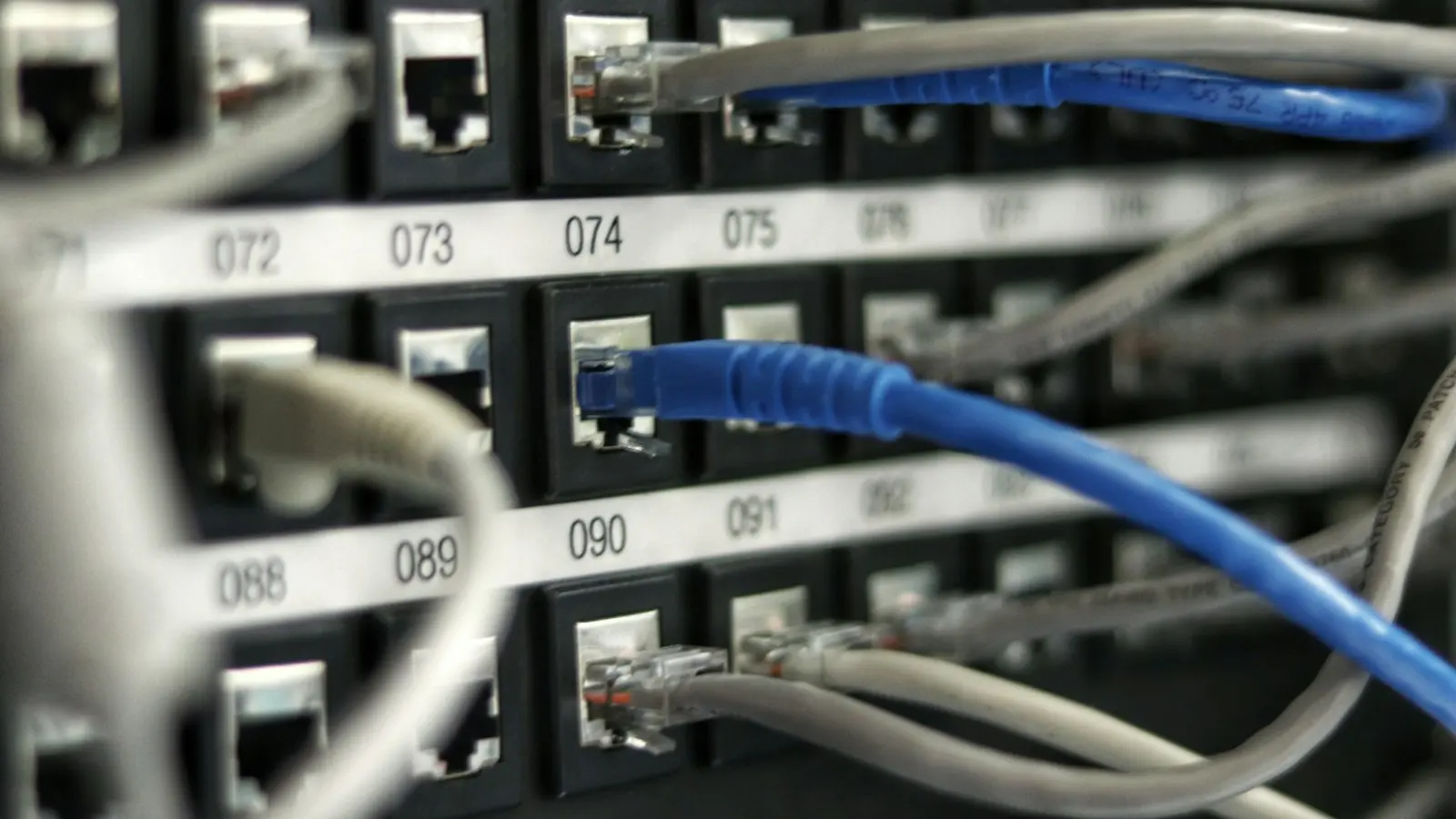
- Terminate runs at a patch panel and label both ends. Future you will be grateful.
- Give the network closet power, ventilation and a small battery backup (UPS). A closet that bakes in summer shortens the life of everything in it.
Designing Business Wi-Fi in Redmond, Oregon Offices
Good Wi-Fi is mostly about placement. Metal shelving, concrete walls, mezzanines and warehouse racking all block signal. A quick walk-through, or a proper site survey for larger spaces, tells you where access points should go before anyone drills a hole.
- Plan for capacity, not just coverage. A conference room full of laptops needs more than one bar of signal.
- Mount access points high and central, not in a closet or behind a monitor.
- Use WPA3 where your devices support it, and a strong passphrase that changes when staff leave.
- Keep the number of network names short. Usually one for staff and one for guests is plenty.
Keep Guest Wi-Fi Separate
Guests, customers and personal phones should never be on the same network as your computers, printers and file shares. A guest network on its own VLAN gets internet access and nothing else. It is one of the simplest, most effective security steps for any office with a lobby, waiting room or tasting room.
The same idea applies to other devices: security cameras, smart TVs, thermostats and card terminals are often best on their own segments. If one of them has a weakness, it cannot be used to reach your business data.
Plan for Outages: Failover and Power
Central Oregon gets winter storms, summer wildfire smoke season and the occasional power outage. Internet lines get cut by construction too. A little planning keeps the doors open:
- A second internet connection. A business firewall can switch to a backup line automatically when the main one drops. The backup can be a different ISP, fixed wireless, satellite or a cellular modem. Different physical paths matter more than speed here.
- Battery backup on the network gear. A UPS on the firewall, switch and modem keeps the network up through short blips and lets things shut down cleanly in long outages.
- Cloud-hosted essentials. If email, files and phones live in the cloud, staff can keep working from home or a phone hotspot when the office is dark.
Moving into a New Office in Redmond
Office moves are where networks go wrong, usually because internet was ordered too late. A simple timeline:
- Before you sign the lease: confirm which internet providers serve that exact address and how long install will take.
- Six to eight weeks out: order primary and backup internet. Walk the space and plan cable runs, the network closet and access point locations.
- Two to four weeks out: get cabling installed while the space is empty. Order firewall, switches and access points.
- The week before: install and test the network so it is ready before the desks arrive.
- Move day: connect computers, printers and phones, and check every desk.
- After the move: return or cancel old ISP equipment and update your network documentation.
The Short Version
- Check the internet options at your exact address first; they vary across Redmond.
- Use a business firewall, managed switches and ceiling-mounted access points instead of a consumer router.
- Wire what you can, label everything, and keep the closet cool and on a UPS.
- Put guests and smart devices on their own network.
- Add a backup internet connection and battery backup before the next storm, not after.
Ongoing Care for Your Network
A network is not a one-time project. Firmware needs updating, passwords need rotating when staff leave, and someone should notice when a link starts dropping before the whole office does. Network monitoring is part of our managed IT services in Redmond, alongside help desk, updates, security basics and vendor management. That last one matters here: we will call the ISP so you do not have to sit on hold.
Managed plans are a flat monthly fee, priced per user per month, and you get a quote for your office from a free IT consultation. Prefer a one-time project instead, like an office move or a Wi-Fi refresh? We do those too.

Get Your Redmond Office Network Sorted
Whether you are fixing dead spots, adding a guest network or moving into a new space, start with a free 30-minute IT consultation. You will get a quote for your office and a one-page, plain-English list of what is fine and what needs fixing. Our Redmond IT support team is local, and a real person answers during the business day.
Text us at (541) 239-3338 or call (541) 239-3338. If the network is down right now, text us. We will tell you what to do next.